Python version:
3.11.9Azure Functions version:
v4Hosting Plan: Consumption Plan (default timeout: 5 min, max: 10 min)
Logic App type: Standard Workflow Service
The 2-Minute Problem with Logic App HTTP Requests
When using Azure Logic Apps (especially the Standard plan) to call an Azure Function through an HTTP action, there's a hard 2-minute timeout limit on the HTTP response. This is not related to the Azure Function’s own timeout, it’s about how long Logic Apps will wait for the HTTP action to respond.
If your function takes more than 2 minutes to respond, Logic Apps considers it a failure, even if the function completes successfully after that.
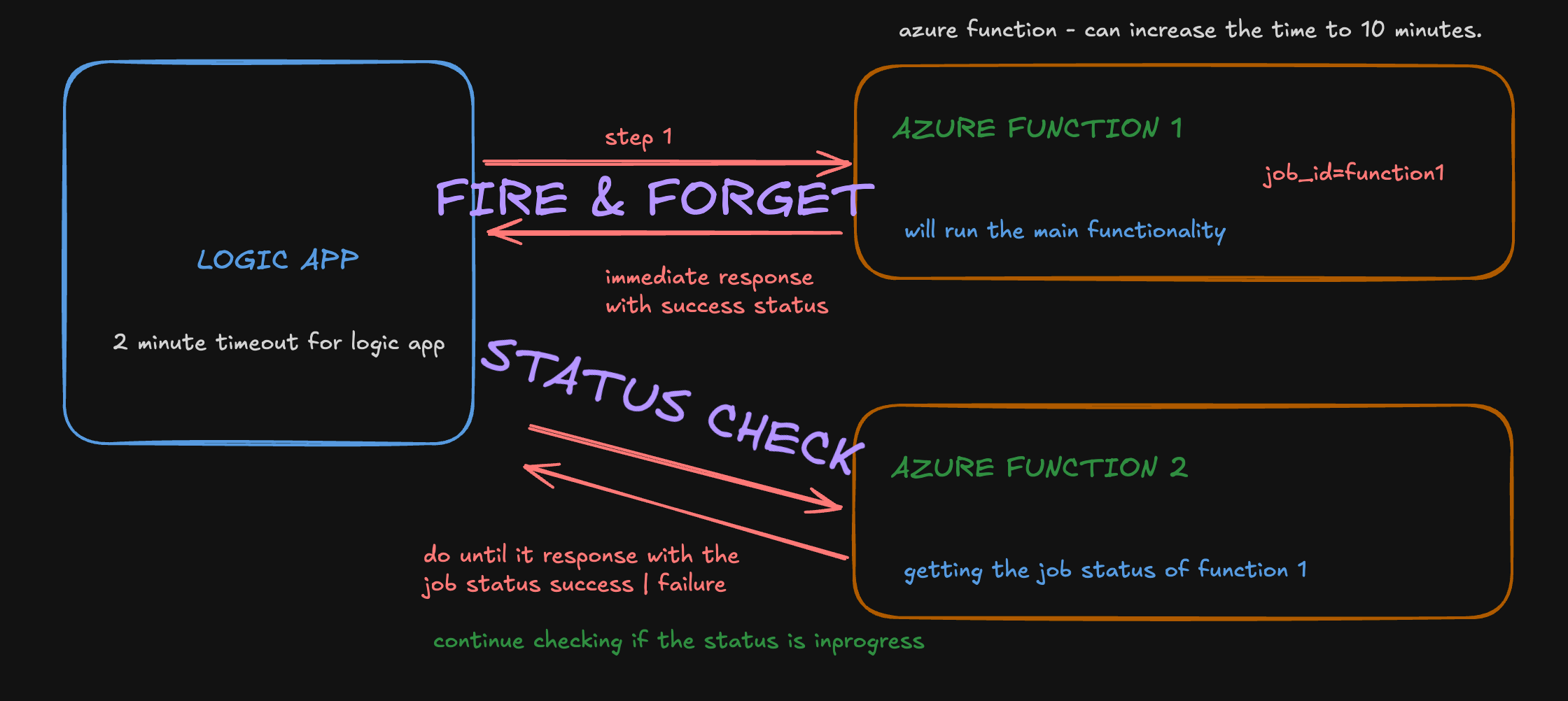
Fire-and-Forget + Status Check
To work around this, we use the fire-and-forget pattern. Here's how:
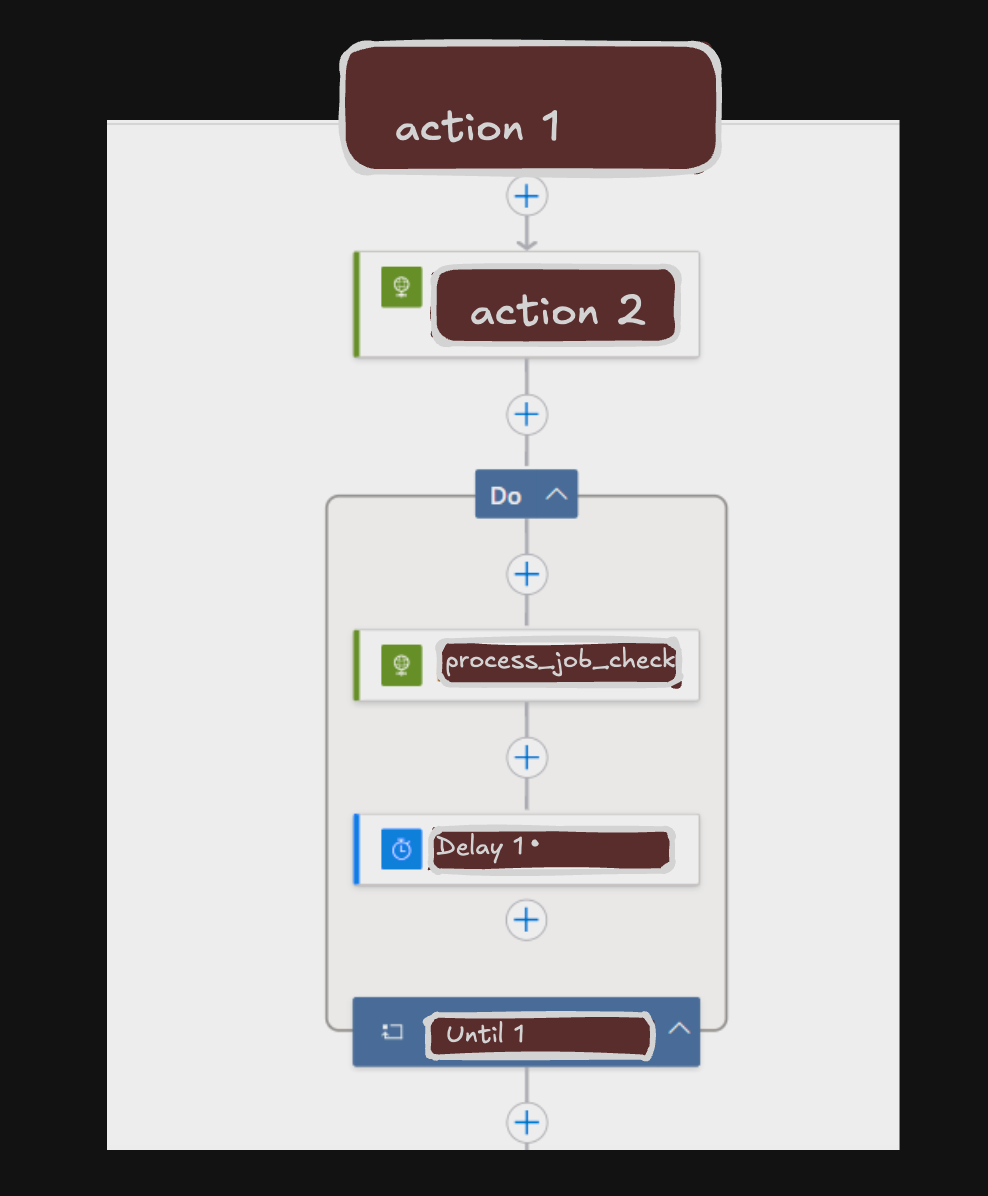
The Azure logic app code view will look like this;
"{action 2 - sending http request that is going to take more than 2 minutes}": {
                "runAfter": {
                    "{action 1}": [
                        "Succeeded"
                    ]
                },
                "limit": {
                    "timeout": "PT10M" // this time out will not work for standard plan
                },
                "type": "Http",
                "inputs": {
                    "uri": "REQUEST LINK",
                    "method": "POST",
                    "headers": {
                        "Content-Type": "application/json"
                    },
                    "retryPolicy": {
                        "type": "none"  // there are options that you can change for retrying http request for codes 408,429 and 5xx
                    }
                },
                "runtimeConfiguration": {
                    "contentTransfer": {
                        "transferMode": "Chunked"   //  how data is transferred
                    }
                }
            },
            "Until 1": {
                "actions": {
                    "process_job_check": {
                        "type": "Http",
                        "inputs": {
                            "uri": "JOB_STATUS_CHECK_REQUEST",
                            "method": "POST"
                        },
                        "runtimeConfiguration": {
                            "contentTransfer": {
                                "transferMode": "Chunked"
                            }
                        }
                    },
                    //  to delay the job check request, if we send request continuesly it will affect azure function's performance
                    "Delay 1": {
                        "runAfter": {
                            "process_job_check": [
                                "Succeeded" //this http request anyway going to send a success request with job status
                            ]
                        },
                        "type": "Wait",
                        "inputs": {
                            "interval": {
                                "count": 30,
                                "unit": "Second"
                            }
                        }
                    }
                },
                "runAfter": {
                    "action 2": [
                        "Succeeded"
                    ]
                },
                "expression": "@equals(outputs('process_job_check').body?.status, 'completed')",
                "limit": {
                    "count": 60,
                    "timeout": "PT1H"
                },
                "type": "Until" // do until loop
            },
        }
    }
}
The Azure logic app designer will look like this;
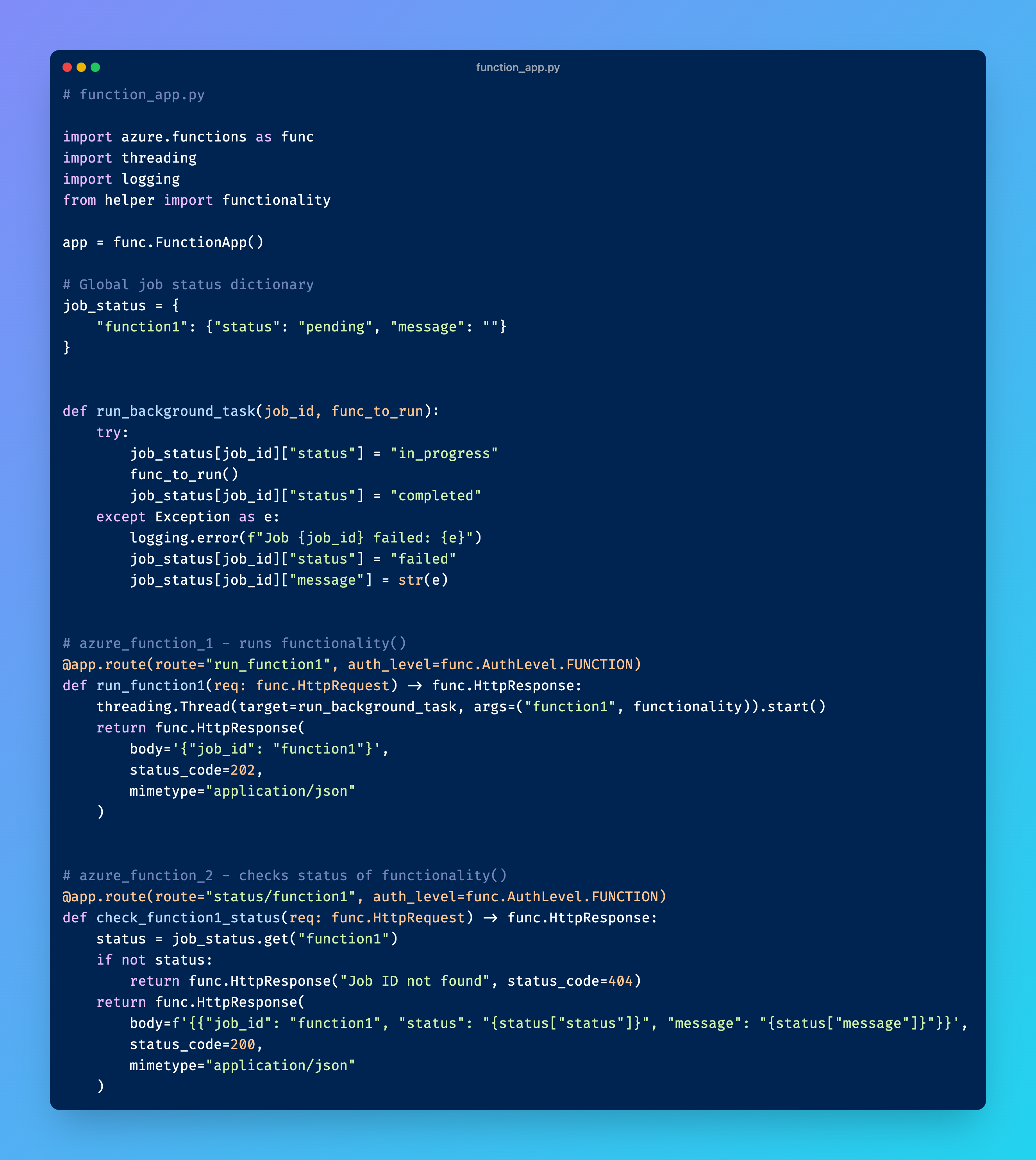
Azure function app code structure.
FunctionApp/
│
├── Function_app.py         # main routes and thread logic
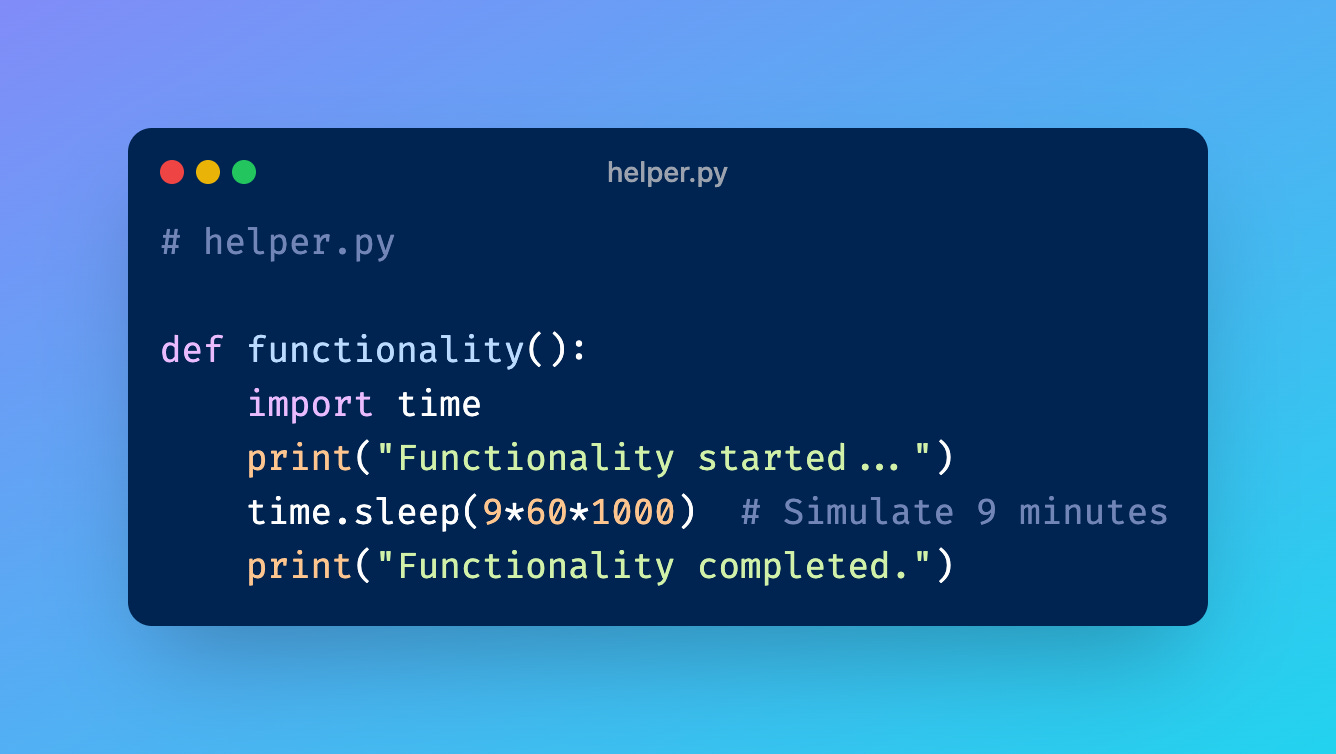
├── helpers.py              # your long-running logic
├── host.json               # timeout config
├── requirements.txt        # dependencies
1. Call an HTTP-triggered Azure Function that immediately returns a 202 Accepted
The function kicks off the real work in a background thread and responds instantly with a job_id.
2. In Logic Apps, use an Until Loop or Delay + Check Pattern
After receiving the job_id, the Logic App calls a second Azure Function (e.g., /status/function1) in a loop until the task completes.
Then inside Logic Apps:
Delay for 30 to 60 seconds
Call the status endpoint
Check if
status == completedExit the loop if complete; otherwise, repeat
This decouples the long-running task from the Logic App timeout and gives you clean, repeatable logic.
⚙️ Function Timeout Settings in Consumption Plan
If you're on the Azure Function Consumption Plan, remember:
Default timeout: 5 minutes
Max timeout: 10 minutes
To extend your function timeout, update your host.json like this:
{
  "functionTimeout": "00:10:00"
}
Also, make sure your logic isn’t accidentally waiting on the thread itself. Always run the heavy task asynchronously using Python threads or other techniques.
If you're combining Logic Apps and Python Azure Functions, timeouts and retries can get tricky, especially when your function takes a while. But with the fire-and-forget pattern and a status polling endpoint, you can build scalable, reliable flows that avoid the 2-minute limitation entirely.
Thanks for reading Supun’s Substack! Subscribe for free to receive new posts and support my work.
Originally published on Substack. Original publication date retained.